


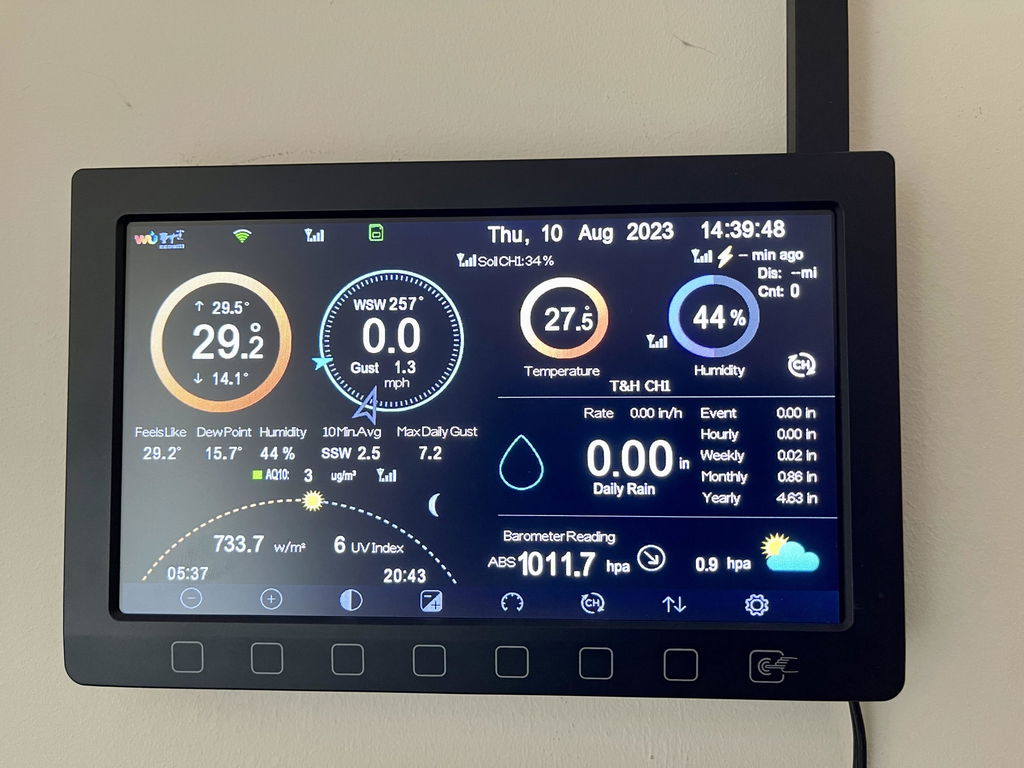
Ecowitt HP2560_C TFT Full Colour Display Console & Power Cable
- Regular price
- £155.00 GBP
- Sale price
- £155.00 GBP
- Regular price
-
To check which products this item can be used with click here to view the latest Ecowitt sensor matrix. All Ecowitt products we supply are 868MHz and suitable for use with others using the same frequency.
Customers praised this TFT colour display console for its excellent quality and ease of use. The display is "very good and can be viewed at all angles" with automatic sensor detection. Shoppers valued the SD card backup feature and internet connectivity. Setup is simple, complementing existing weather systems seamlessly.
I was so indecisive whether I should purchase one of these consoles as I have it all on my phone.
But how wrong I was!! I brought it anyway and am sure glad I did all I have to do now is glacé at it and I know what’s going off.
Once I set it all up each day am learning new things that’s going on with the weather around me and for a person who suffers from low pressure headaches ( sounds daft I know ) I can really keep on track :-}
Found WeatherSpares to be very helpful with any queries and prompt at dispatching items. The display is everything we wanted and complements our GW3000, WS80, WH40 and WN31.
Purchased as an addition after replacing an old PWS that had failed. Simply plugged it in and within a couple of minutes it had automatically picked up the sensors, display is very good. The outstanding point was the super fast delivery!
My display console had one too many trips to the floor, and it no longer showed data. I emailed Weather Spares on a Sunday, anticipating a reply in the working week, but I received an emailed reply on the same day: this was Sunday evening. Great support from Weather Spares as ever.
The display console sits by my computer, as it is connected to Internet of Things on the router. Currently transmitting to Ecowitt, Wunderground, and Met Office WOW. So I can sit in bed and read the local weather stats before I plan the day.
Brilliant bit of kit
I purchased this to upgrade my pre existing system. It does what was expected easy to expand my system to add more sensors. The display is very good and can be viewed at all angles. Added advantage of also having a back up feature to sd card too. Ultra fast delivery well worth the investment.
Excellent. Easy to set up with plenty information on display. Well done Weather Spares for speedy delivery and marvellous customer service.
I already have an Ecowitt HP2560_C TFT Full Colour Display Console. Can I have another one in a different room that will connect to my sensors without conflict?
Yes, you can have as many consoles as you wish so long as they are within radio range of the sensors. We recommend that all consoles are connected to WiFi to receive date and time updates, but only one is used to upload to online services.
Can I use the HP 2560 c console in
Conjunction with the WN1981 weather
Station
Yes, you can add the HP2560 console to your WN1981 and it will display data from the same outdoor WS90 array.
I cannot see my separate outdoor temperature & humidity sensor (WH32) on the main display, I just have dashes. How can I fix this?
<div>The factory default for the HP2560 console is that the WH32 outdoor sensor is disabled). If you follow the button presses below you can enable this sensor:</div>
<div> </div>
Press Cog > Scroll to More Press + to select > Scott to Sensor ID Setup  Press + to select > Scroll to T&H (reads disabled) press + and select register.<br />
<div>
<div> </div>
<div>This should then change from disabled on the list of sensors and the console will start to search for it before it appears on the main screen. The curled left arrow ‚Ü© will back you out to the main screen once again.</div>
</div>


